


This article will explain how to post image into the forum using imgbb (https://imgbb.com/).
Background: some people use imgur to upload & attach images into the forum. Unfortunately, it seems that imgur blocks access to residents of certain countries. For example: imgur blocks access to UK users after regulator warned of fine.
imgbb is an alternative to imgur. Below is the tutorial to upload image to imgbb & display it on the forum. No imgbb account required.
Background: some people use imgur to upload & attach images into the forum. Unfortunately, it seems that imgur blocks access to residents of certain countries. For example: imgur blocks access to UK users after regulator warned of fine.
imgbb is an alternative to imgur. Below is the tutorial to upload image to imgbb & display it on the forum. No imgbb account required.
- On your browser, go to https://imgbb.com/. Find the "Start Uploading" button. Click it and you'll see a dialogue box where you can choose the image to be uploaded. Choose the image and click "OK" or "Submit".
- Next, you'll see some options to customize, as well as the "Upload" button. Let's go with default values for now and straight away click the "Upload" button. Your file is now being uploaded.
- After it's done, imgbb will tell you that the upload process is complete.
- There's also a dropdown where you can choose on how to embed the image. The default one is "Viewer links". This works but it will display only a small thumbnail & link to imgbb. To get the bigger version, click the dropdown and choose the "BBCode full linked".
- You'll probably see more than one tags. There can be additional tags which is probably part of advertisement. We just need the one that points to the image.
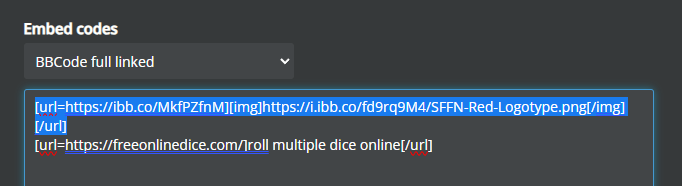
- Copy that URL tag.
- Go back to SFFN forum & find your draft (or create a new post). In the text area, paste this URL like below:

- You're more or less done. At any time you can click the "Preview" button to toggle between the edit & preview mode to see how your post will look like. You can then continue to edit or submit your post.


